- Details
- Written by Super User
- Category: Demo Info
- Hits: 702
Every template built on Vertex also comes with its own unique template specific options applicable to that particular template such as highlight colors, social icons, and much more. These features are in addition to the standard functions of Vertex, and are still controlled through the very user friendly interface of Vertex. This page will document the features specific to this template.
Template Specific Configuration Interface of Vertex
Below is a screenshot that shows all the template specific features available in the user friendly Vertex admin: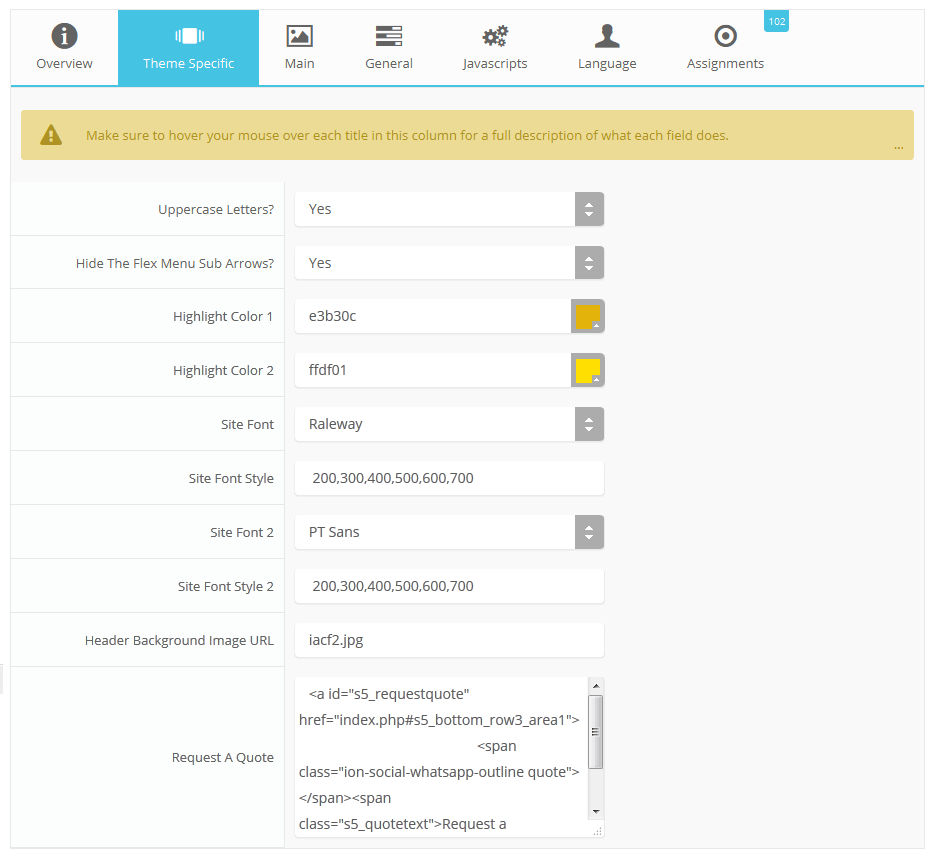
Request a Quote
The Request a Quote area is a custom HTML area that you can add any HTML code you desire to it in the Vertex admin area.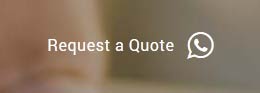
Custom Highlight Colors
Stylize your site with any color you want. Set your own custom color scheme with the built in highlight colors. These control menu items, titles, buttons, hover over effects, backgrounds, and much more. You can set this color to any color that you want. Below is an example so you can see how this works.
Custom Highlight Font
Choose a custom highlight font powered by Google fonts. You can set a custom font for the titles, buttons, and much more. This is used in conjunction with the default site font which is controlled under the Layout tab of Vertex, and controls many other elements as well.
Uppercase Letters
Choose to enable or disable uppercase letters on most menu items, buttons, titles and more.
Hide Menu Arrows
With this option you can disable the menu item sub menu arrows on first level parent items.
Login, Register, Language Flags and Font Resizer
This items are disabled on the demo, but can easily be enabled as shown below.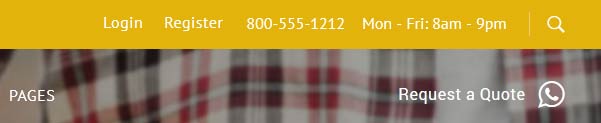

- Details
- Written by Super User
- Category: Demo Info
- Hits: 26
Features:
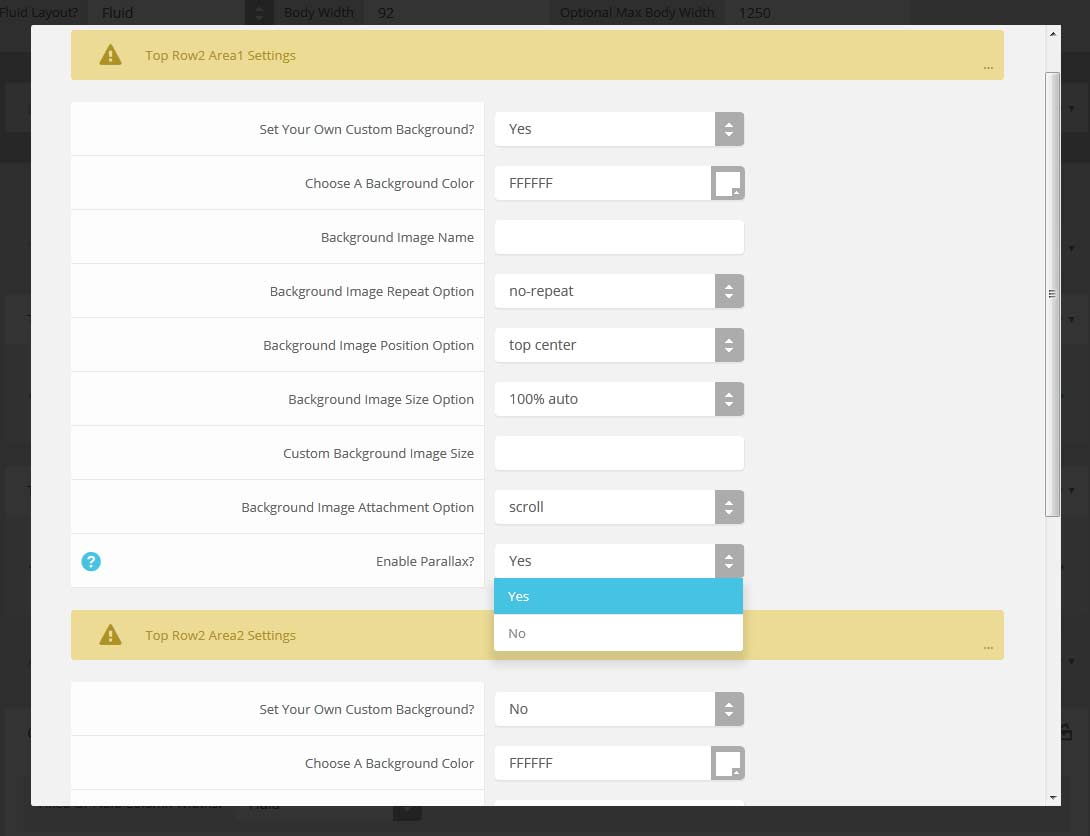
- Set the scroll speed of the images
- Set background repeat style
- Set background image size, 100%, cover, contain, etc
- Set custom backgrounds for all s5 rows in the framework.
- Enable or disable parallax on a per row basis
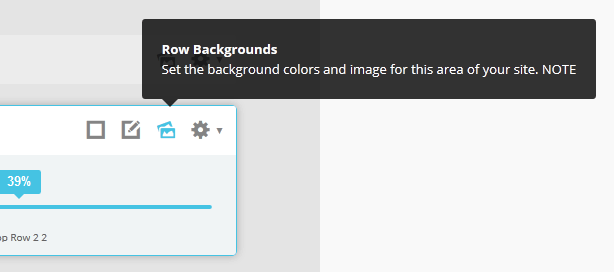
Admin Area Of The Backgrounds Tab:
- Details
- Written by Super User
- Category: Demo Info
- Hits: 24
Demo 1:

Demo 2:
Demo 2 Image Tool Tip
Demo 3:
Demo 3 Image Tool Tip
- Details
- Written by Super User
- Category: Demo Info
- Hits: 376
Drop Caps
L orem ipsum dolor sit amet, consectetur adipiscing elit. Mauris tristique lobortis orci ac lacinia. Fusce eu purus eget diam vehicula auctor nec eu elit. Morbi consequat facilisis orci vel malesuada. Donec ultrices molestie sollicitudin. Morbi consequat facilisis orci vel malesuada. Donec ultrices molestie sollicitudin. Mauris tristique lobortis orci ac lacinia. Mauris tristique lobortis orci ac lacinia.
L orem ipsum dolor sit amet, consectetur adipiscing elit. Mauris tristique lobortis orci ac lacinia. Fusce eu purus eget diam vehicula auctor nec eu elit. Morbi consequat facilisis orci vel malesuada. Donec ultrices molestie sollicitudin. Morbi consequat facilisis orci vel malesuada. Donec ultrices molestie sollicitudin. Mauris tristique lobortis orci ac lacinia. Mauris tristique lobortis orci ac lacinia.
Porem ipsum dolor sit amet, consectetur adipiscing elit. Mauris tristique lobortis orci ac lacinia. Fusce eu purus eget diam vehicula auctor nec eu elit. Morbi consequat facilisis orci vel malesuada. Donec ultrices molestie sollicitudin. Morbi consequat facilisis orci vel malesuada. Donec ultrices molestie sollicitudin. Mauris tristique lobortis orci ac lacinia. Mauris tristique lobortis orci ac lacinia.
Porem ipsum dolor sit amet, consectetur adipiscing elit. Mauris tristique lobortis orci ac lacinia. Fusce eu purus eget diam vehicula auctor nec eu elit. Morbi consequat facilisis orci vel malesuada. Donec ultrices molestie sollicitudin. Morbi consequat facilisis orci vel malesuada. Donec ultrices molestie sollicitudin. Mauris tristique lobortis orci ac lacinia. Mauris tristique lobortis orci ac lacinia.
Video Overlay
1. Enter the url of your video in the video src area.
2. Enter your background image under the video_overlay_wrap style area. This is the background image that appears before the video loads and at 1024px. Please note that all videos disable at 1024px due to restrictions on tablets and phones.
3. Enter an optional max-height under the video_overlay_wrap style area. This will prevent the video from becoming larger than the height specified.
4. Enter an optional min-height under the video_overlay_wrap style area. This will prevent the video from becoming smaller than the height specified. This is very useful for when the video is disabled at 750px, and the background image shows in its place.
4. Enter an optional width under the video_overlay_wrap style area. This will stretch the video to a specified length, but will be cropped off by the surrounding parent div.
4. Enter your desired text in the video_overlay_text_wrap_inner area. Text should be minimal to avoid any space issues on smaller screens; videos maintain ratio and decrease on smaller devices.
<video muted autoplay="autoplay" loop="loop" src="/images/video.mp4"></video>
<div class="video_overlay_text_wrap">
<div class="video_overlay_text_wrap_inner">
Lorem ipsum dolor sit amet, consectetur adipiscing elit. Morbi efficitur scelerisque ligula, sit amet fermentum metus.
<div style="clear:both;height:0px;"></div>
</div>
</div>
</div>
Social Icons
Ion Icons must be enabled to use these icons.
<a href="/" class="social_icon ion-social-twitter"></a>
<a href="/" class="social_icon ion-social-googleplus"></a>
<a href="/" class="social_icon ion-social-rss"></a>
<a href="/" class="social_icon ion-social-pinterest"></a>
Notifications
Images
This is an image with the "boxed" class applied:
This is an image with the "boxed_white" class applied:
This is an image with the "boxed_black" class applied:
This is an image with the "padded" class applied:
This is an image with the "full_width" class applied. This can also be done automatically in the template configuration. Be sure to review our Vertex Guide here for other full width image options.

Headings
Heading 1
Heading 2
Heading 3
Heading 4
Heading 5
Ion Icons
<div class="icon_hover">
<a href="/" class="ion-link icon_element"></a>
</div>
<div class="icon_non_hover">
<span class="ion-headphone icon_element"></span>
</div>
</div>
Click here for more icon examples
Dates
<div class="date_wrapper">
<div class="date_top">
AUG
</div>
<div class="date_bottom">
22
</div>
</div>
<div class="date_text_wrap">
<span class="date_text1"><a href="/">Top Sample Text</a></span>
<span class="date_text2">When: August 22, 2014 at 7:00pm</span>
</div>
<div style="clear:both"></div>
</div>
Overlay
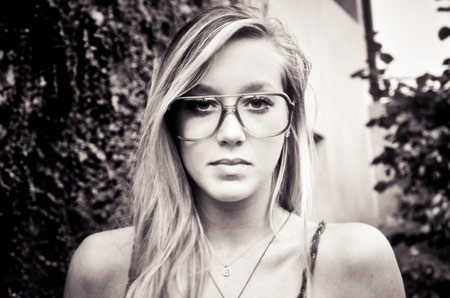
Michelle Wright
Senior Developer

Photos credits by Daniele Zedda, JohnONolan, Daniele Zedda, Daniele Zedda, AllansBrain, rolands.lakis
<div class="overlay_outer four">
<div class="overlay_inner">
<div class="overlay_hover_outer">
<div class="overlay_hover_inner">
<div class="overlay_socialicons">
<a class="overlay_facebook" href="https://www.facebook.com/shape5.templates" target="_blank"></a>
<a class="overlay_twitter" href="https://twitter.com/shape_5" target="_blank"></a>
</div>
</div>
<img src="http://www.shape5.com/demo/images/general/team/team1.jpg" alt="team1"/>
</div>
<br>
Mike Summerfield
<br>
<span style="color:#a8a8a8;">CEO/Owner</span>
<br> </div>
</div>
Video Play Overlay
<div class="overlay_hover_outer">
<div class="overlay_hover_video">
<div class="overlay_centered">
<a href="http://www.youtube.com/v/VGiGHQeOqII" id="youtube" class="s5mb" title="Youtube.com Video">
<span class="ion-play ion-play-size"></span>
</a>
<div class="s5_multibox youtube">UP: Carl and Ellie </div>
</div>
</div>
<img src="http://www.shape5.com/demo/images/general/typography_vidplay.jpg" alt="iphone vid" />
</div>
</div>
Image Hover Zoom
<div class="image_hover_zoom_text">
Overlay Text
</div>
<img src="http://www.shape5.com/demo/images/general/typography_vidplay.jpg" alt="" />
</div>
Misc
<a> With readon class applied:readon
<span> With uppercase class applied:
uppercase
This is a sample blockquote. Use <blockquote><p>Your content goes here!</p></blockquote> to create a blockquote.
#s5_code { width: 30px; color: #fff; line-height: 45px; }
- This is an Ordered List
- Congue Quisque augue elit dolor nibh.
- Condimentum elte quis.
- Opsum dolor sit amet consectetuer.
- This is an Unordered List
- Congue Quisque augue elit dolor nibh.
- Condimentum elte quis.
- Opsum dolor sit amet consectetuer.
- This is an Unordered List with class ul_arrow
- Congue Quisque augue elit dolor nibh.
- Condimentum elte quis.
- Opsum dolor sit amet consectetuer.
- This is an Unordered List with class ul_star
- Congue Quisque augue elit dolor nibh.
- Condimentum elte quis.
- Opsum dolor sit amet consectetuer.
- This is an Unordered List with class ul_bullet
- Congue Quisque augue elit dolor nibh.
- Condimentum elte quis.
- Opsum dolor sit amet consectetuer.
The following list will support plain text such as numbers of ion icons, class="ul_circle_content":
- 01Lorem ipsum dolor sit amet, consectetur adipiscing elit. Sed ut mattis quam. Suspendisse tempor mollis porta. Quisque consequat justo risus, et venenatis erat consectetur sit amet. Curabitur varius tortor metus, non convallis felis fermentum sed. Nam varius justo nulla, et ultricies augue venenatis ut. Proin tempor aliquam dapibus. Pellentesque euismod vehicula est, a euismod lacus feugiat sit amet.
- 02Lorem ipsum dolor sit amet, consectetur adipiscing elit. Sed ut mattis quam. Suspendisse tempor mollis porta. Quisque consequat justo risus, et venenatis erat consectetur sit amet. Curabitur varius tortor metus, non convallis felis fermentum sed. Nam varius justo nulla, et ultricies augue venenatis ut. Proin tempor aliquam dapibus. Pellentesque euismod vehicula est, a euismod lacus feugiat sit amet.
- 03Lorem ipsum dolor sit amet, consectetur adipiscing elit. Sed ut mattis quam. Suspendisse tempor mollis porta. Quisque consequat justo risus, et venenatis erat consectetur sit amet. Curabitur varius tortor metus, non convallis felis fermentum sed. Nam varius justo nulla, et ultricies augue venenatis ut. Proin tempor aliquam dapibus. Pellentesque euismod vehicula est, a euismod lacus feugiat sit amet.
- Lorem ipsum dolor sit amet, consectetur adipiscing elit. Sed ut mattis quam. Suspendisse tempor mollis porta. Quisque consequat justo risus, et venenatis erat consectetur sit amet. Curabitur varius tortor metus, non convallis felis fermentum sed. Nam varius justo nulla, et ultricies augue venenatis ut. Proin tempor aliquam dapibus. Pellentesque euismod vehicula est, a euismod lacus feugiat sit amet.
The following list will support lists up to number 9, add the following class to the UL wrapping the below LI elements, class="ul_numbers":
- This is a sample styled number list <li class="li_number1">Your content goes here!</li>
- This is a sample styled number list <li class="li_number2">Your content goes here!</li>
- This is a sample styled number list <li class="li_number3">Your content goes here!</li>
- This is a sample styled number list <li class="li_number4">Your content goes here!</li>
Price Table
<div class="s5_pricetable_3">
<div class="s5_pricetable_column">
<div class="s5_pricetable_column_padding">
<div class="s5_title">Basic</div>
<div class="s5_price_wrap">
<span class="dollarsign">$</span><span class="price">49</span><span class="month">/per month</span>
</div>
<div class="s5_options">
<div class="s5_option">
Unlimited Space & Traffic
</div>
<div class="s5_option">
99.9% Server Uptime
</div>
<div class="s5_option">
24/7 Customer Care
</div>
<div class="s5_option">
30 Days Money Back
</div>
</div>
<div class="s5_horizontalrule"></div>
<div class="s5_buttoncenter"><a class="button s5_pricetable" href="#">Choose</a></div>
</div>
</div>
<div class="s5_pricetable_column recommended">
<div class="s5_pricetable_column_padding">
<div class="s5_title">Standard</div>
<div class="s5_price_wrap">
<span class="dollarsign">$</span><span class="price">79</span><span class="month">/per month</span>
</div>
<div class="s5_options">
<div class="s5_option">
Unlimited Space & Traffic
</div>
<div class="s5_option">
99.9% Server Uptime
</div>
<div class="s5_option">
24/7 Customer Care
</div>
<div class="s5_option">
30 Days Money Back
</div>
<div class="s5_option">
FREE Domain Name
</div>
<div class="s5_option">
Personal Concierge
</div>
</div>
<div class="s5_horizontalrule"></div>
<div class="s5_buttoncenter"><a class="button s5_pricetable" href="#">Choose</a></div>
</div>
</div>
<div class="s5_pricetable_column">
<div class="s5_pricetable_column_padding">
<div class="s5_title">Premium</div>
<div class="s5_price_wrap">
<span class="dollarsign">$</span><span class="price">99</span><span class="month">/per month</span>
</div>
<div class="s5_options">
<div class="s5_option">
Unlimited Space & Traffic
</div>
<div class="s5_option">
99.9% Server Uptime
</div>
<div class="s5_option">
24/7 Customer Care
</div>
<div class="s5_option">
30 Days Money Back
</div>
</div>
<div class="s5_horizontalrule"></div>
<div class="s5_buttoncenter"><a class="button s5_pricetable" href="#">Choose</a></div>
</div>
</div>
<div style="clear:both;"></div>
</div>
Responsive YouTube and Vimeo Videos
Make any Youtube, Vimeo, etc video you embed to your site work with responsive by wrapping with a DIV with a class of "s5_video_container". The below Youtube Video will shrink when the area its contained in gets too small for it:- Details
- Written by Super User
- Category: Demo Info
- Hits: 49
- 01In the backend of Joomla go menu item Extensions/Template Manager.
- 02Click on the title of the template.
- 03This will bring you to the template manager screen where you can edit the template's parameters.
- 04Click save when you are done