- Details
- Written by Super User
- Category: Demo Info
- Hits: 56
We recommend publishing to a module position that is near the bottom of your site. For example we have it published to our "bottom_menu" position for this demo.
NOTE: This is not a "live chat" it simply sends an email.
Features at a Glance:
- AJAX powered
- Spam controlled through Google reCaptcha
- Set the color and hover color
- Set the name, email, message and submit button text
- Sends mail via mail() php function
- Details
- Written by Super User
- Category: Demo Info
- Hits: 46
Round icon example:
<div class="icon_outer_wrap">
<div class="icon_hover">
<a href="" class="ion-link icon_element"></a>
</div>
<div class="icon_non_hover">
<span class="ion-headphone icon_element"></span>
</div>
</div>
<div class="icon_hover">
<a href="" class="ion-link icon_element"></a>
</div>
<div class="icon_non_hover">
<span class="ion-headphone icon_element"></span>
</div>
</div>
Icon Examples:
<span class="ion-camera" style="display:
inline-block;font-size:2.5em;"></span>
- Details
- Written by Super User
- Category: Demo Info
- Hits: 131
Image and Content Fader Code:
This is for the code that we used in the "description" box for the image and content fader.
<span class="center">
<span class="s5_iacfbig">or remodels</span><br>
We do it all
<br>
<a href="#s5_bottom_row2_area1" class="readmore_iacf">
<span class="readmorecircle"><span class="ion-android-arrow-forward"></span></span><span class="readmore_iacf_inner">Read
More</span></a>
</span>
<span class="s5_iacfbig">or remodels</span><br>
We do it all
<br>
<a href="#s5_bottom_row2_area1" class="readmore_iacf">
<span class="readmorecircle"><span class="ion-android-arrow-forward"></span></span><span class="readmore_iacf_inner">Read
More</span></a>
</span>
Tab Show Boxes
The below code is duplicated three times for each tab show position. Notice the "three" in the first DIV below. This can be changed from two,three,four,five and six depending on how many you desire in one row.
<div class="overlay_outer three">
<div class="overlay_inner_gc">
<div class="overlay_whiteback">
<img src="images/cust1.jpg" alt="roofing"/>
<div class="overlay_whiteback_inner">
<div class="overlay_whiteback_icon">
<span class="ion-android-home whitebacki"></span>
<strong>Roofing</strong>
</div>
<div class="overlay_whiteback_text">
We have worked over many years and have gotten better and better. You should really hire us to work for you.
<br><br>
<a class="readon" href="#s5_bottom_row1_area1">Read More</a>
</div>
</div>
</div>
</div>
</div>
<div class="overlay_inner_gc">
<div class="overlay_whiteback">
<img src="images/cust1.jpg" alt="roofing"/>
<div class="overlay_whiteback_inner">
<div class="overlay_whiteback_icon">
<span class="ion-android-home whitebacki"></span>
<strong>Roofing</strong>
</div>
<div class="overlay_whiteback_text">
We have worked over many years and have gotten better and better. You should really hire us to work for you.
<br><br>
<a class="readon" href="#s5_bottom_row1_area1">Read More</a>
</div>
</div>
</div>
</div>
</div>
About Us Circles:
The following code can be duplicated three times to show just like we have done on the demo here published to the "Top Row 2_1" position.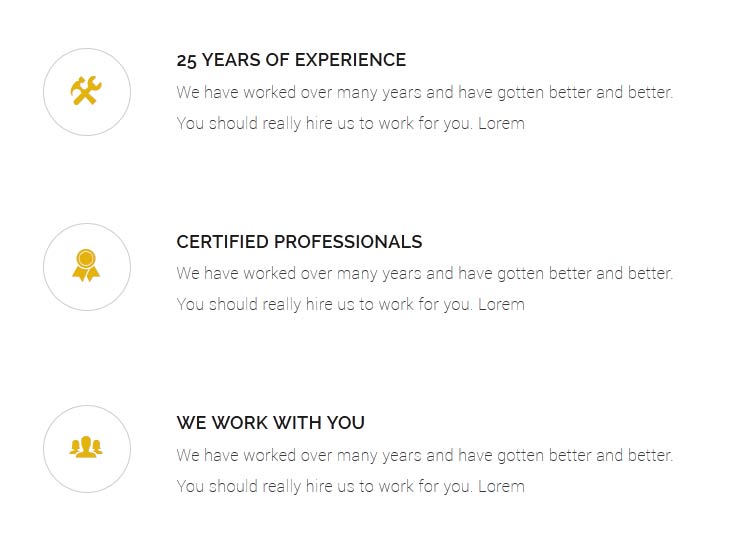
<div class="gc_aboutus_circle">
<span class="ion-settings aboutusicons"></span>
</div>
<div class="gc_aboutus_circle_right">
<h5>25 Years of Experience</h5>
We have worked over many years and have gotten better and better. You should really hire us to work for you. Lorem
</div>
<div style="clear:both;height:85px;"></div>
<span class="ion-settings aboutusicons"></span>
</div>
<div class="gc_aboutus_circle_right">
<h5>25 Years of Experience</h5>
We have worked over many years and have gotten better and better. You should really hire us to work for you. Lorem
</div>
<div style="clear:both;height:85px;"></div>
Module Pre-text:
This is the code that is published to the pre-text areas of the S5 Quick Contact and S5 Vertical Accordion modules
<span class="ion-help-circled highlightcolor"></span><span class="s5_footericons">Frequent Questions</span>
<br><br><br>
<span class="ion-chatbox-working highlightcolor"></span><span class="s5_footericons">Questions or Callback Requests:</span>
<br><br><br>
<br><br><br>
<span class="ion-chatbox-working highlightcolor"></span><span class="s5_footericons">Questions or Callback Requests:</span>
<br><br><br>
Social Icons:
This can be published to any position but for the demo we've published it to the "custom_1" position.
<a class="social_icon ion-social-facebook" target="_blank" href="http://www.facebook.com/shape5.templates"></a>
<a class="social_icon ion-social-googleplus" href="javascript:;"></a>
<a class="social_icon ion-social-rss" href="javascript:;"></a>
<a class="social_icon ion-social-googleplus" href="javascript:;"></a>
<a class="social_icon ion-social-rss" href="javascript:;"></a>
Rounded Video:
Below is the code for the rounded video published to the Top_row_2_2 position.
<div class="video_overlay_wrap rounded_image" style="background: url('images/video_preload.jpg');">
<video class="roundedvideod" muted autoplay="autoplay" loop="loop" src="images/construction.mp4"></video>
</div>
<video class="roundedvideod" muted autoplay="autoplay" loop="loop" src="images/construction.mp4"></video>
</div>
- Details
- Written by Super User
- Category: Demo Info
- Hits: 34

- Details
- Written by Super User
- Category: Demo Info
- Hits: 127
The S5 Box can be demo'd by clicking on either the Login or Register buttons on this page.
The module allows for up to 10 different S5 Box's on one page all via 10 module positions. You simply add a class to any HTML element on your site and enable the corresponding box and you are good to go!
To enable the login and register modules:
- 01Install the S5 Box module and publish it to all pages on your site. Try to publish it to a position where a module already exists on all pages, but don't worry it won't change the layout of your site, the script is automatically hidden on your site.
- 02Install and publish the S5 Register module to the 'register' module position
- 03Publish the default Joomla login module to the 'login' module position.
- 04In your template parameters area of Joomla you can change the text for login, register and logout.
- 05That's it, you're all done!
If you do not wish to use the S5 Box but would still like to use the Login and Register links then simply complete step 4 above and also fill out your own custom urls just below those fields in the template configuration. Filling out the custom url fields will disable the S5 Box.
The S5 Box runs off of the core Joomla jquery/mootools libraries so there will be no conflicts with third party extensions or extra javascript files to download.
Features:
- Powered by no conflict mode jQuery Javascript or mootools
- Choose, elastic, fade or none for the popup effect
- Up to 10 S5 Box's throughout your site or on any one page!
- Set the percentage of width of each box according to overall screen size
Tutorial on how to get the s5 box working and use all 10 module positions it includes:
- 01Adding the S5 Box positions:
- Open up the templateDetails.xml file included with the template you are using.
- Locate the positions area.
- Start adding new positions s5_box1, s5_box2, s5_box3, etc all the way up to s5_box10.
- 02Adding the S5 Box classes:
- The S5 Box class name of the corresponding position must be added to the link that will open the box. For example the following code will display a link that says Click Here and will open the S5 Box and display whatever module is published to the s5_box3 module position:
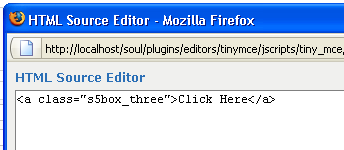
- These classes can be added to any element, ie: divs, spans, etc., but the common use will be to add this into content with a link similar to the one shown in the picture above. To enter this link you must do so from the HTML edit screen on your content editor:
Once you have clicked the HTML button the HTML code window will appear much like the first image. - You can continue adding these classes throughout your site just be sure to have published a module to the corresponding position or the box will not work correctly. So if you add the class s5box_two you will also have to publish a module to the s5_box2 position.
- Module positions and their corresponding classes:
s5_box1 = s5box_one
s5_box2 = s5box_two
s5_box3 = s5box_three
s5_box4 = s5box_four
s5_box5 = s5box_five
s5_box6 = s5box_six
s5_box7 = s5box_seven
s5_box8 = s5box_eight
s5_box9 = s5box_nine
s5_box10 = s5box_ten
- 03Lastly, publish your modules to the S5 Box positions:
- Now that you have added the s5 box positions just go to your site modules area and publish modules to those positions
- Make sure that you have added a class to an HTML element as described above or the s5 box will have no activation button
- Also make sure to publish the actual s5 box to a non s5 box position, perhaps publish it to the "debug" position or a similar one in your template.
Main S5 Box Module Settings:
- In the backend of the S5 Box module you can adjust the width of each box independent of each other.
- Make sure that the S5 Box module is published to all pages, it can be published to any template position. Also make sure that the module opening in the box is published to the page the link is on.